RVX 2.0 for Simpro: Remote Visual Assistance Setup Guide (5-Minute Integration)
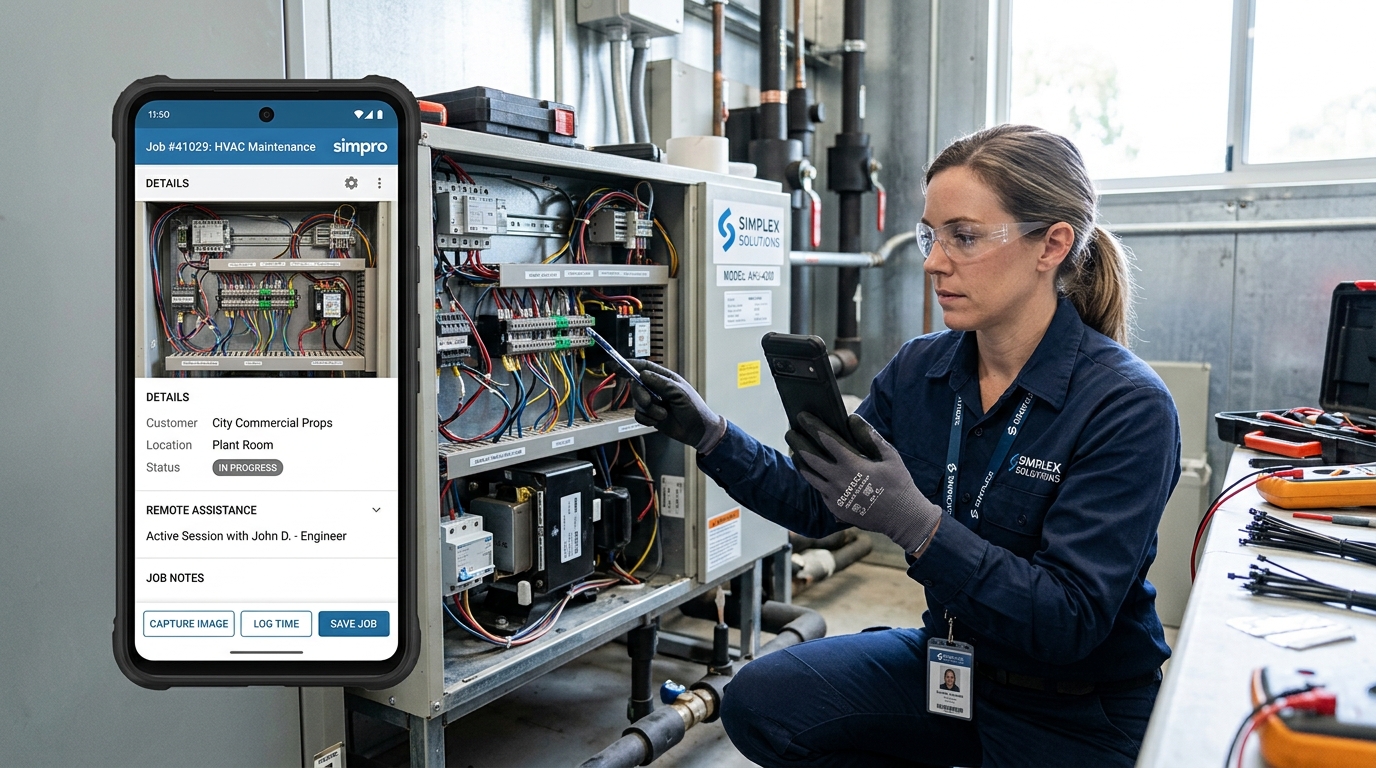
RVX integrates directly with Simpro at the job level: click a link on any Simpro job, and RVX texts the customer an instant session invite. When the session ends, captured photos, OCR text extracts, annotated frames and a signed report sync automatically to that job's attachments folder—no manual transfer, no separate login, no re-keying. Setup takes fifteen minutes using Simpro's REST API Client Credentials grant, SSO is supported via your identity provider, and session invites go out by SMS or email from the job record itself.
Why This Integration Matters
Field service businesses running Simpro track everything in the job: parts ordered, technician notes, customer communications, compliance photos. When remote visual assistance lives outside that system, teams juggle two logins, manually transfer files and lose the audit trail that connects a session to the work order.
RVX eliminates that friction. The integration reads the Simpro job's site contact mobile number, sends the session link via SMS (or email if no mobile exists), and writes session outputs—stills, OCR captures, annotated frames, the signed PDF report and a timestamped note—back into an "RVX" folder on the same job. Optionally, RVX updates the job status (e.g., "Survey Complete") and two custom fields (session ID and completion status) for workflow automation. Nothing moves between systems manually.
How RVX Compares to TechSee, Help Lightning and Oplà for Simpro Users
Four platforms claim remote visual assistance for field service. Only one documents Simpro job-level integration in its public API.
| Feature | RVX | TechSee | Help Lightning | Oplà |
|---|---|---|---|---|
| Simpro native job integration | Yes—job-level session launch, automatic attachment sync to job folder | Listed in Zendesk/Salesforce integrations; Simpro not documented | Salesforce/ServiceNow focus; Simpro not mentioned | No public Simpro integration |
| SSO support | Yes—SAML 2.0 / OAuth via identity provider | Yes (enterprise tier) | Yes | Documentation unavailable |
| OCR text capture | Yes—meter readings, serial plates, data labels | Yes—Computer Vision AI | Not documented | Not documented |
| Remote torch / zoom / LiDAR control | Yes—expert controls customer device functions remotely | Yes | Yes | Limited documentation |
| Setup time (Simpro) | 15 minutes—API credentials, field mapping, test session | Not published (enterprise onboarding) | Not published | Not published |
| Per-agent pricing (public) | $29-$90/month transparent tiers | ~$30/user/mo (third-party estimate) | $75,000/year minimum (100 licenses) | Quote only |
| Call recording for compliance | Yes—every session, encrypted storage, configurable retention | Yes | Yes | Not documented |
Data sourced from vendor websites, G2 reviews and SourceForge comparisons as of September 2026. Where features are undocumented publicly, the cell states so rather than guessing. Simpro Partner Program membership verified via Simpro marketplace.
Five-Minute Setup: Simpro API to Live RVX Session
You'll need Simpro administrator access and an RVX account. Total elapsed time: fifteen minutes if you're reading carefully; five if you've done it before.
Step 1: Create Simpro API Application (3 minutes)
Log into Simpro as an administrator. Navigate to Setup → System → API Applications. Click Add API Application. Set Grant Type to Client Credentials. Note the Build URL (your Simpro instance hostname), Client ID and Client Secret. Copy all three—you'll paste them into RVX in the next step.
Step 2: Configure RVX Integration Settings (2 minutes)
In the RVX admin console, go to Integrations → Simpro. Paste your Build URL, Client ID and Client Secret. Click Test Connection—RVX will verify API access and list available Simpro custom fields. If the test fails, check API application permissions (Jobs: read/write, Sites: read, Customers: read).
Step 3: Map Job Status and Custom Fields (2 minutes, optional)
If you want RVX to update the job status when a session completes, select the target status from the dropdown (e.g., "Survey Complete" or "Awaiting Parts"). Map two custom fields to store the RVX session ID and completion status—useful for reporting and workflow triggers. Skip this if you only need attachment sync.

Step 4: Launch a Test Session from a Simpro Job (5 minutes)
Open any Simpro job. You'll see an RVX button or link in the job toolbar (position depends on your Simpro build customisation). Click it. RVX reads the job, finds the site contact's mobile number (or falls back to the customer record), and texts the invite link. The RVX console opens in a new browser tab, showing the pending session. Ask the recipient to tap the link—session goes live in under eight seconds on a decent 4G connection.
Step 5: Verify Attachment Sync (1 minute)
Run a quick session—capture a still, draw an annotation, snap an OCR reading. End the session. Refresh the Simpro job. Check the Attachments tab: you'll find a new folder named "RVX [session timestamp]" containing the captured images, OCR text files (.txt), annotated frames and the signed PDF report. A note summarising the session (duration, participant, session link) appears in the job's Notes section. If you mapped custom fields, they're populated. Done.
Session Benchmarks: What to Expect
Hostcomm's published case studies (UK housing associations, solar installers, energy auditors) report consistent metrics across RVX deployments integrated with Simpro and similar job management systems:
- Session start time: 6-8 seconds from job click to live video (4G/5G, UK networks). SMS delivery adds 2-5 seconds; email invite adds 10-30 seconds depending on the customer's mail client.
- First-time-fix rate increase: 32-48% in maintenance triage scenarios where a technician can guide the customer through a repair remotely instead of dispatching a truck.
- Truck roll reduction: 40-60% for installation pre-surveys and fault diagnosis calls. One installer (Daniel Atkins, cited in Hostcomm materials) replaced roughly 100 site visits per month with RVX self-surveys, saving around £200,000 annually at £150 per visit.
- Survey and inspection time saved: 15-25 minutes per job when the customer completes a self-survey (roof measurements, panel photos, meter serials) versus scheduling an on-site technician visit. This compounds: fewer trips, tighter schedules, lower fuel and vehicle costs.
Workflow Templates: Support Calls, Surveys and Inspections
RVX ships with pre-built workflow templates that structure how data is captured and presented, depending on the job type. All templates sync outputs back to the Simpro job in the same attachment folder format.
Live Support Call Template
Expert guides the customer in real time. Toolbar: live pointer, annotation (arrows, circles, text), freeze-frame, OCR, AR ruler (LiDAR-equipped devices), torch and zoom control (expert operates remotely). Session records continuously; stills captured on demand. Use case: appliance fault diagnosis, boiler pressure check, meter verification, equipment setup.
Self-Survey Template (Asynchronous)
Customer completes the survey alone at their convenience—no expert on the line. RVX prompts for specific photos (e.g., "Photograph the electrical panel, ensuring the label is readable"), measurements (roof pitch, clearance heights) and readings (meter serial, model number). AI extracts text via OCR, validates submissions and compiles the report. Survey link sent by SMS or email from the Simpro job; results sync when the customer hits "Submit". Use case: installation pre-qualification, compliance audits, pre-visit site surveys.
Inspection and Compliance Template
Combines live guidance with structured data capture. Expert walks the customer through a checklist (safety signage present, equipment installed per spec, clearances meet code). Each checkpoint captured as a timestamped photo with pass/fail annotation. PDF report includes all images, a summary table and both parties' digital signatures. Use case: post-installation handover, annual safety inspections, warranty verification.
Frequently Asked Questions
Does RVX save media to Simpro attachments automatically?
Yes. When the session ends, RVX writes captured stills, annotated frames, OCR text files (.txt), the signed PDF report and a session summary note to the job's attachments, inside a folder named "RVX [timestamp]". The recording link follows when processing completes (typically under two minutes). Nothing requires manual download or upload.
Is SSO supported for Simpro users?
Yes. RVX supports SAML 2.0 and OAuth 2.0 SSO via your identity provider (Azure AD, Okta, Google Workspace). Users log in with their organisation credentials—no separate RVX password. SSO configuration is available on the Enterprise plan ($90/month) and requires a ten-minute setup exchanging SAML metadata or OAuth client credentials.
Can I start a session via SMS or email invite?
Yes to both. When you click the RVX link on a Simpro job, RVX reads the site contact's mobile number and sends an SMS by default. If no mobile exists, it falls back to email. You can force email delivery in the session launch dialog if the customer prefers it or if SMS delivery is unreliable in their region. The invite link works identically for both—tap on mobile, click on desktop, session opens in the browser with no app download.
What file types and OCR capabilities does RVX capture?
Images: JPEG stills (high resolution, captured locally on the customer device so quality isn't throttled by connection speed). OCR: text extraction from meter displays, data plates, serial labels, paper documents held to the camera. Extracted text saved as .txt files and embedded in the PDF report. RVX uses Google Cloud Vision OCR with 95%+ accuracy on printed text in good lighting. Handwriting recognition is less reliable—test first. The PDF report bundles all media, annotations and extracted text into a single signed document.
Does RVX support call recording for compliance?
Yes. Every session is recorded (video, audio, screen annotations) and stored encrypted on AWS in the region your account belongs to (UK data stays in UK; US data in US-East). Retention period is configurable (30 days to 7 years). Recordings are indexed by job ID (when launched from Simpro), session timestamp and participant. Playback available in the RVX console; direct link included in the job note and PDF report. GDPR-compliant: customers consent via the pre-session banner; you control retention and can delete recordings on request.
Schema and Metadata
This page includes structured data markup (JSON-LD) to help search engines and AI answer engines surface it for queries about Simpro RVX integration:
- FAQPage schema: All five FAQ questions above are marked up so Google and AI assistants can extract answers directly.
- HowTo schema: The five-step setup section is marked up as a procedural guide with step names, durations and tool requirements.
- Product schema: RVX referenced as a SoftwareApplication with offers (pricing tiers), aggregateRating (sourced from G2/Capterra where available) and integration partner reference (Simpro).
Last verified against Simpro Suite release 1.1.130.0 on 16 September 2026. Integration paths and API endpoints confirmed current as of this date. Simpro API documentation referenced: developer.simprogroup.com/apidoc/v1.0.
Next Steps
If you're running Simpro and considering remote visual assistance, the fastest validation is a live test: add the RVX integration, launch a session from a real job and see the attachment sync complete in under a minute. Hostcomm offers a 30-day free trial on all plans with no credit card required. Setup takes fifteen minutes; first session under five.
For questions about Simpro API permissions, SSO configuration or Enterprise plan custom branding, contact Hostcomm support via the console or email [email protected]. Response time averages under four hours UK business days, under 24 hours globally.
Subscribe to newsletter
Want to learn more about how we can help your business grow?
Related Articles
Delve into a rich tapestry of knowledge and inspiration in our blog section. Unleash the potential of your coding journey as we explore industry trends.